Setting up your accounts
Below are the steps you’ll need to take in order to get your CCR accounts fully activated. We ask that you configure your accounts prior to June 30 so the CCR staff can address any issues that may arise prior to their scheduled support break (summer understaffing).
You have been provided two accounts (via direct emails from the CCR), which can be a little confusing. One is an account that gets you access to the University at Buffalo’s VPN network and the other is the account you’ll use on CCR’s resources like the cluster. In order to connect to our machines, you have to be on the UB network. If you’re attending the workshop in-person, when on-campus you’ll use the Eduroam or UB Guest WiFi network. Instructions for using these can be found on the university’s IT website. When you’re off-campus, you’ll use the UB VPN to access UB’s network prior to connecting to CCR.
Step 1: Setup two factor authentication for your UB VPN account, following these instructions.
The username for this account is: itorg\uccr.UBID
NOTE: Your username and VPN password will be sent in a separate email. Everywhere you see “UBID” in these instructions, substitute the username provided.
Step 2: Download and install UB’s Cisco VPN client.
You will be receiving a separate email from Globus with the link to download this software. If you do not already have a Globus account you will instructed to create one at this point. The UB account provided here will not work for the Globus service.
NOTE: this link is only accessible using the email address this is getting sent to. If you cannot access it, please let CCR staff know.
Step 3: Connect to the CCR VPN – following these instructions.
-
When you start the Cisco software the first time you will need to enter the following in the box labeled “Connect to:” vpn.buffalo.edu
-
Select CCR from the group drop down menu
-
Enter the UB VPN username WITHOUT the itorg in front (e.g. uccr.UBID - remember to substitute UBID with you actual username) and password provided.
-
You’ll be prompted to ask how you want to received the second factor from Duo.
Now that you have setup the UB account and connected to the VPN, you’ll be able to move forward with your CCR account.
Step 4:
-
Make sure you’re connected to the UB VPN and go to CCR’s identity management portal,
-
Enter your CCR username (e.g. UBID) and click the Next button.
-
Click the “forgot your password?” link to generate a one-time password reset link. The link contained in this email only lasts for 15 minutes.
NOTE: If you see a “403” or “something bad happened” or a blank page, please clear your browser cache and cookies and restart your browser (or use a different browser).
Step 5: Enable two factor authentication on your CCR account following these instructions.
FINALLY … Connect to CCR!
Step 6: There are two ways to connect to our systems:
Once connected to the UB network, you may login to our front end login machines using:
- a SSH client (server name: vortex.ccr.buffalo.edu)
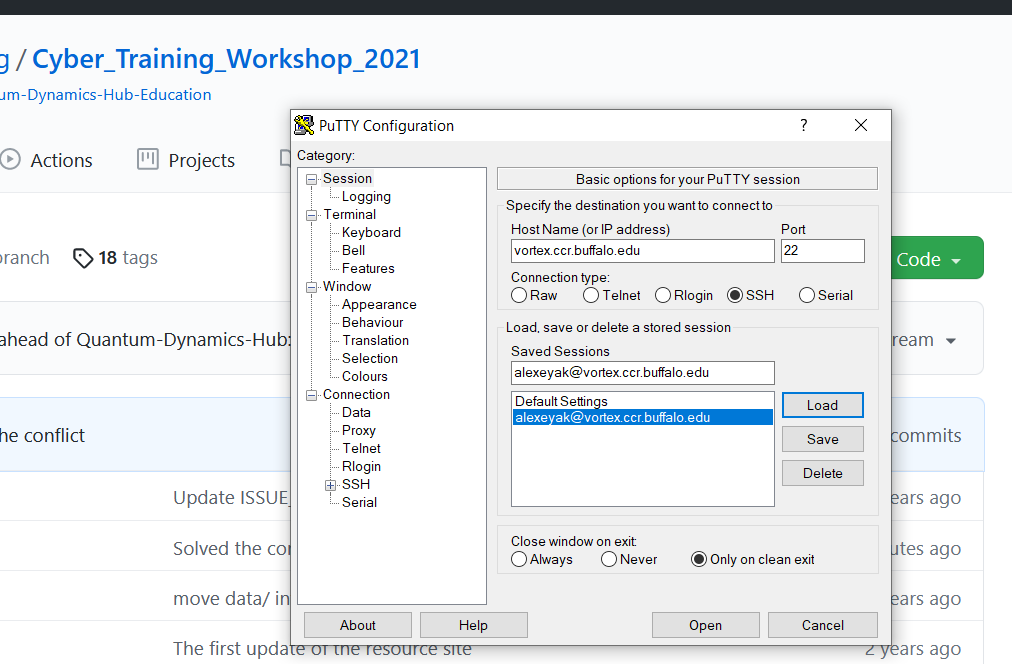
If you choose to use a SSH client, you may login to our pool of front end servers with the address: vortex.ccr.buffalo.edu. You must use SSH keys as we do not accept passwords over SSH. We have information about this here
- or using the OnDemand web portal
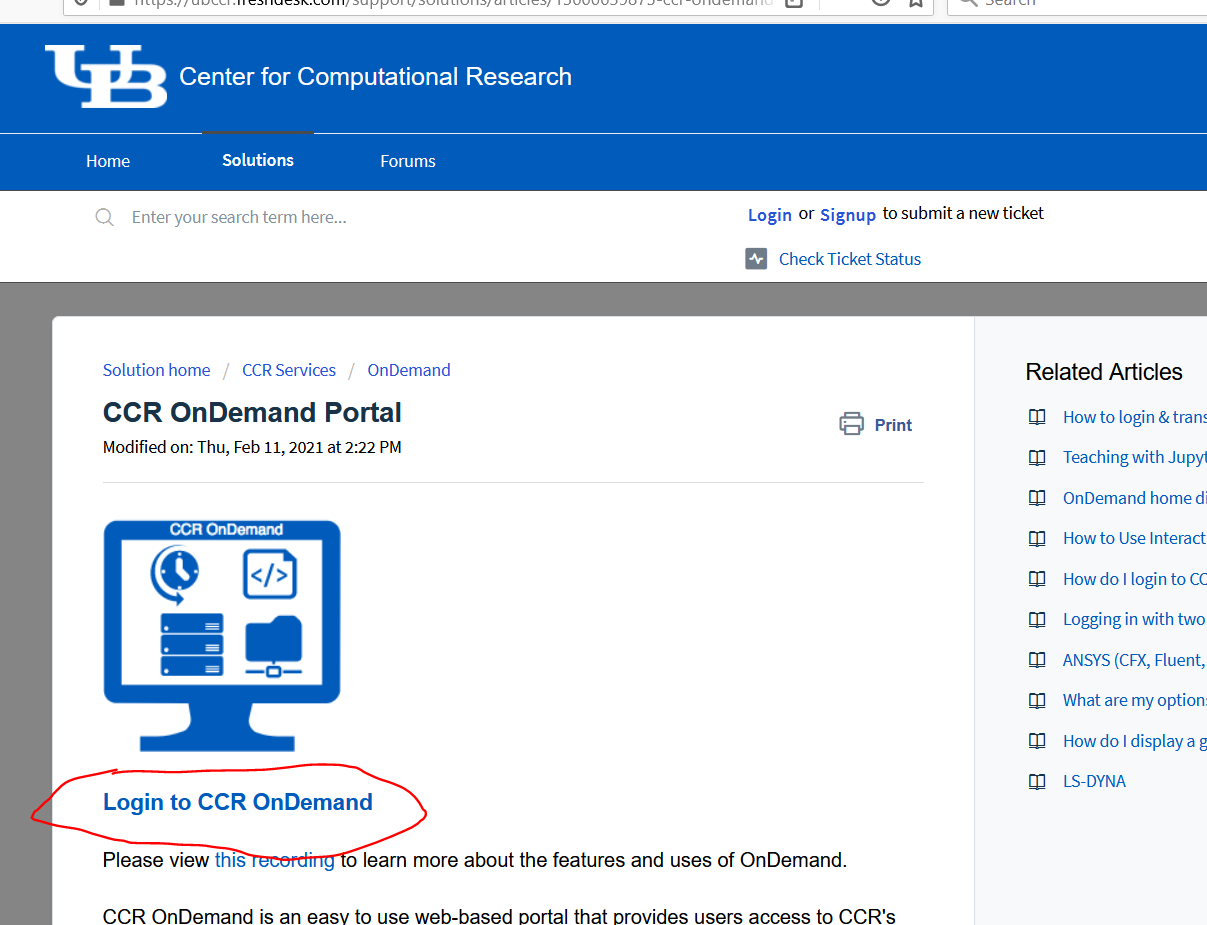
All documentation for using our systems can be found here
Duration of accounts
Your access to both the UB VPN and CCR’s resources will be terminated on August 31, 2026.
We provide detailed documentation on our services and recommend you begin with the Getting Started guide.
If you have any questions or problems while using our systems, please do not hesitate to contact us at ccr-help@buffalo.edu.
Thank you and welcome to UB CCR!
Working directories
The key resources are located here: /projects/academic/cyberwksp21
You can use the /projects/academic/cyberwksp21/Students/<your username> folders for keeping your key data/scripts + your home directory
Note: you’ll need to create that folder yourself
The key software for the workshop is available in the following subfolders: SOFTWARE,SOFTWARE_2026, and SOFTWARE_NEW_ENV further instructions will be provided in
specific tutorials
It is advisable that your run your larger calculations in the scratch directory: /vscratch/grp-cyberwksp21/
Note: vscratch is a faster-access memory, so the calculations should go faster too, but the content is purged periodically, so make sure to save your valuable data before too long
Zoom links for all days:
Monday, July 6
CyberTraining 2026, Monday morning
Time: Jul 6, 2026 09:00 AM Eastern Time (US and Canada) Join Zoom Meeting https://buffalo.zoom.us/j/99907913677?pwd=xzY1771VpSYoHGu3qKtuobUsu3BmqU.1 Meeting ID: 999 0791 3677 Passcode: 400877
CyberTraining 2026, Monday afternoon
Time: Jul 6, 2026 01:30 PM Eastern Time (US and Canada) Join Zoom Meeting https://buffalo.zoom.us/j/91070005592?pwd=NW7TUZY8fRQCbpTaXbeFnmWn0JdJ7n.1 Meeting ID: 910 7000 5592 Passcode: 184609
Tuesday, July 7
Topic: CyberTraining 2026, Tuesday morning
Time: Jul 7, 2026 09:00 AM Eastern Time (US and Canada) Join Zoom Meetinghttps://buffalo.zoom.us/j/93890482361?pwd=nToXgId8SlqTFMkviKpnsuPu7v5mPm.1 Meeting ID: 938 9048 2361 Passcode: 050616
Topic: CyberTraining 2026, Tuesday aftrnoon
Time: Jul 7, 2026 01:30 PM Eastern Time (US and Canada) Join Zoom Meeting https://buffalo.zoom.us/j/95513576046?pwd=uqLe8Pcoa2NatHUXb1vsINaG6nh7ah.1 Meeting ID: 955 1357 6046 Passcode: 141012
Wednesday, July 8
Topic: CyberTraining 2026, Wednesday morning
Time: Jul 8, 2026 09:00 AM Eastern Time (US and Canada) Join Zoom Meeting https://buffalo.zoom.us/j/97768650891?pwd=Ta4Iyn8qDOMidKU9JAwYfkMnaiUbK1.1 Meeting ID: 977 6865 0891 Passcode: 397048
Topic: CyberTraining 2026, Wednesday afternoon
Time: Jul 8, 2026 01:30 PM Eastern Time (US and Canada) Join Zoom Meeting https://buffalo.zoom.us/j/96726537085?pwd=09IfC7dS6tnSn95HoAWzCi9LpXKatF.1 Meeting ID: 967 2653 7085 Passcode: 242518
Thursday, July 9
Topic: CyberTraining 2026, Thursday morning
Time: Jul 9, 2026 09:00 AM Eastern Time (US and Canada) Join Zoom Meeting https://buffalo.zoom.us/j/98095641261?pwd=oFvGes5IZr0dcSjfvjPzqDXUo0Jo8L.1 Meeting ID: 980 9564 1261 Passcode: 379581
Topic: CyberTraining 2026, Thursday afternoon
Time: Jul 9, 2026 01:30 PM Eastern Time (US and Canada) Join Zoom Meeting https://buffalo.zoom.us/j/97527083866?pwd=DyaHhEPxiETj7z1kN67XAsa3EpXFgP.1 Meeting ID: 975 2708 3866 Passcode: 144157
Friday, July 10
Topic: CyberTraining 2026, Friday morning
Time: Jul 10, 2026 09:00 AM Eastern Time (US and Canada) Join Zoom Meeting https://buffalo.zoom.us/j/91870093938?pwd=AAdSDfwSMH2OhhP3HDPVjab4o2MVzU.1 Meeting ID: 918 7009 3938 Passcode: 302084
Topic: CyberTraining 2026, Friday afternoon
Time: Jul 10, 2026 01:30 PM Eastern Time (US and Canada) Join Zoom Meeting https://buffalo.zoom.us/j/93643155301?pwd=nank8sR2ME0eiurcaB93RHSzSvieRA.1 Meeting ID: 936 4315 5301 Passcode: 429643